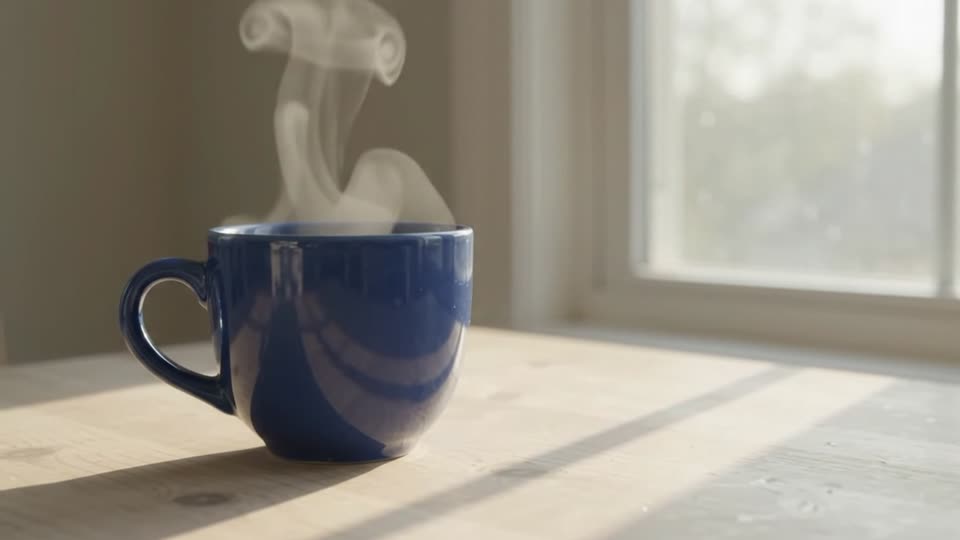
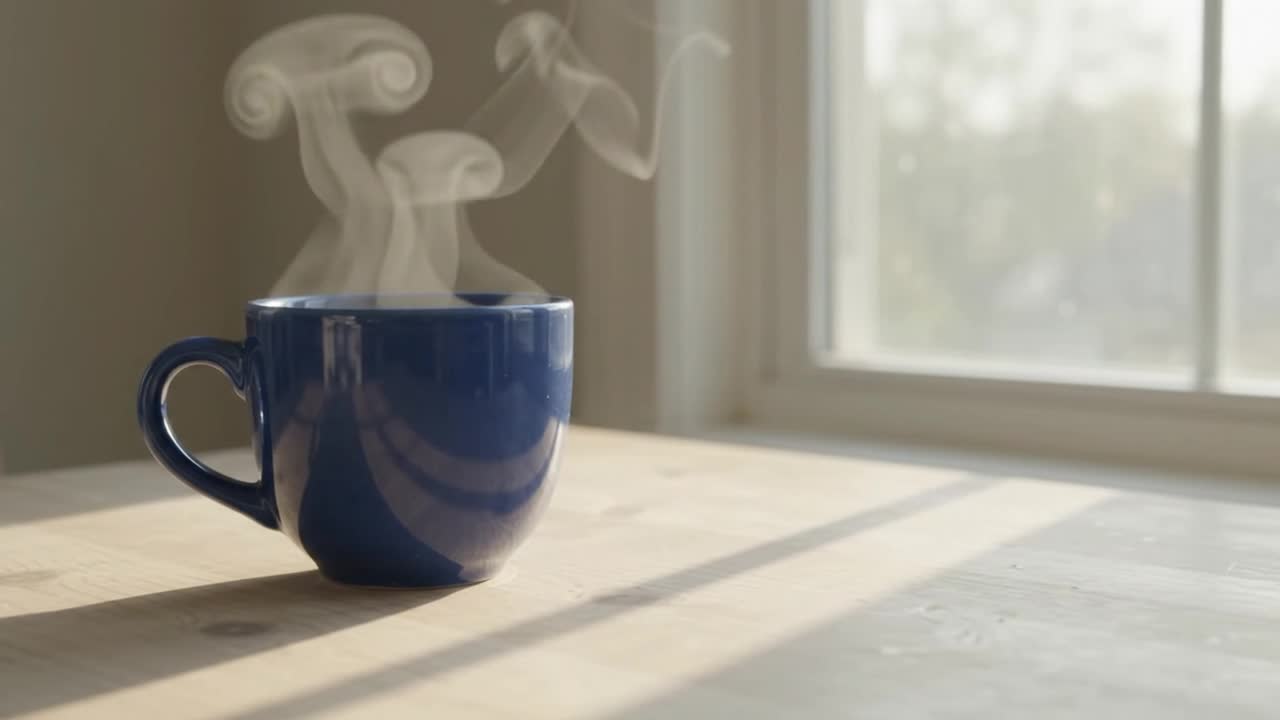
Создавайте видео с Gemini Omni 1.1 Flash из текста или изображений с генерацией звука.
Gemini Omni 1.1 Flash · Обзор
Создайте первый кадр из текста или фото, затем измените цвета, свет или стиль видео текстовой инструкцией. Сохраните оригинал и сравнивайте каждую новую версию.
Change only the ceramic cup from cobalt blue to warm terracotta orange. Preserve the cup shape, camera movement, table, window light, steam and background. Keep everything else the same.
После редактирования
Тест AIVG · 5s · 2026-09-06
Промпт и настройки
720p · 5s · 16:9 · Стоимость редактирования зависит от измеренной длины исходника.
Исходные данные: Видео синей чашки из первого примера.
Что проверить: Сравните начало, середину и конец, включая область вне чашки.
Change the window light to soft golden-hour evening light with longer warm shadows. Preserve the cobalt blue cup, table, steam, framing and original camera motion. Do not add objects or text.
После редактирования
Тест AIVG · 5s · 2026-09-06
Промпт и настройки
720p · 5s · 16:9 · Стоимость редактирования зависит от измеренной длины исходника.
Исходные данные: Снова выберите исходное видео синей чашки.
Что проверить: Свет должен стать теплее; проверьте цвет чашки, композицию и движение.
Restyle this shot as a delicate watercolor animation on textured paper. Keep the cup, steam, tabletop, composition, timing and camera path recognizable. Use soft blue and warm neutral washes. No added lettering or objects.
После редактирования
Тест AIVG · 5s · 2026-09-06
Промпт и настройки
720p · 5s · 16:9 · Стоимость редактирования зависит от измеренной длины исходника.
Исходные данные: Исходное видео чашки.
Что проверить: Отдельно оцените стиль и сохранение деталей: форму чашки и новые объекты.
Один объект и медленное движение упрощают проверку.
Промпт на английском
A plain cobalt blue ceramic cup rests on a pale wooden table beside a window. Soft morning light, gentle steam rising, one slow camera push-in. No people, no lettering, no logos. Keep the cup shape and tabletop stable. Natural room ambience.
Созданное видео
Тест AIVG · 5s · 2026-09-06
Промпт и настройки
720p · 5s · 16:9
Исходные данные: Только текст.
Что проверить: Проверьте ручку, край чашки, пар и движение камеры.
Оживить фото товара
Проверьте движение и обрезку горизонтальной фотографии для вертикального кадра.
Начальное изображение
Промпт на английском
Animate this product photograph with a very slow camera push-in and subtle natural changes in the window light. Preserve the product shape, color, placement and background. Keep the shot calm and continuous. Do not add people, lettering or extra objects.
Созданное видео
Тест AIVG · 5s · 2026-09-06
Промпт и настройки
720p · 5s · 9:16
Исходные данные: Собственное чёткое фото; здесь горизонтальный исходник превращён в вертикальное видео.
Что проверить: Сравните первый кадр, обрезанные края, форму объекта и фон.
Начать с черновика
Проверьте композицию в 360p перед отдельной генерацией высокого разрешения.
Промпт на английском
A small glass vase with three white flowers on a dark wooden desk. Soft side light and gentle movement in the petals. A locked camera, one continuous close-up, quiet room ambience. No text, no people and no additional objects.
Созданное видео
Тест AIVG · 3s · 2026-09-06
Промпт и настройки
360p · 3s · 16:9
Исходные данные: 360p, 3 секунды; после проверки выберите другое разрешение.
Что проверить: Здесь показан черновик. Высокое разрешение — новая генерация, а не увеличение без потерь.
Как использовать
Как работать с Gemini Omni 1.1 Flash
01
Выберите исходный материал
Введите описание, загрузите фотографию или выберите редактирование и исходное видео.
02
Опишите один кадр или правку
Укажите, что изменить и что сохранить: объект, движение камеры, фон и ритм.
03
Проверьте цену и сравните версии
Проверьте точную стоимость перед запуском. Сохраните оригинал, сравните новую версию и при необходимости отмените изменения черновика.
Возможности
Поддерживаемые параметры
Длительности
3с / 4с / 5с / 6с / 7с / 8с / 9с / 10с
Разрешения
360p / 720p / 1080p / 4k
Соотношения сторон
16:9 / 9:16
Генерация аудио
Поддерживается
Финальный кадр (image tail)
Доступно для изображения в видео
Seed
Недоступно
Негативный промпт
Недоступно
Последняя проверка
Sep 6, 2026 · Stale
Пример 360p / 5s: 40 кредитов, что соответствует $0.796 USD при покупке пакета 100 кредитов за $1.99 USD. Кредиты продаются пакетами; перед генерацией проверьте точную стоимость выбранных настроек.
Для чего подходит
Создавайте ролики на 3–10 секунд по тексту или изображению.
Редактируйте выбранное видео, сохраняя оригинал.
Проверьте черновик в 360p, затем создайте отдельную версию в 720p, 1080p или 4K.
Знайте до генерации
Загрузка источника: один MP4 с H.264, до 10 секунд и 50 МБ; также доступен выбор завершённого видео AIVG.
Правка может изменить детали, которые требовалось сохранить. Сравнивайте начало, середину и конец.
Несколько видеореференсов, загрузка аудио, маски и покадровые правки недоступны.
Доступность редактирования видео зависит от региона.
Сервис и аккаунт
AIVG не предоставляет API, безлимитные кредиты или удаление водяных знаков; вопросы официального аккаунта адресуйте Google.
Можно ли использовать созданное видео в коммерческих целях?+
Коммерческое использование регулируется условиями каждой модели — проверьте их перед публикацией.
Будет ли на экспортированном видео водяной знак?+
Водяной знак и права экспорта зависят от тарифа и выбранной модели.
Что происходит с кредитами при неудачной генерации?+
Когда генерация переходит в состояние ошибки, списанные за неё кредиты возвращаются на баланс.
Когда я увижу точную стоимость в кредитах?+
Точная стоимость перед каждой генерацией.
Можно загрузить своё видео?+
Да. Выберите редактирование и загрузите MP4 H.264 до 10 секунд и 50 МБ. Просмотрите источник и опишите правку. Замена или удаление источника сохраняет инструкцию.
Референс и редактирование — одно и то же?+
Нет. Референс направляет облик или движение нового видео. Редактирование меняет конкретный исходный ролик, стремясь сохранить указанные части.
Как рассчитывается цена правки?+
По измеренной длительности источника с округлением вверх до целых секунд и выбранному разрешению. Точная цена показывается перед каждой версией.
Можно снова изменить предыдущий результат?+
Да. Выберите завершённый результат как источник и создайте следующую версию. Для другой идеи можно вернуться к более раннему источнику.
Остальное сохранится без изменений?+
Это не гарантируется. Сравнивайте оригинал и изменённый ролик, чтобы заметить нежелательные изменения.