Crea vídeos con Gemini Omni 1.1 Flash a partir de texto o imágenes, con audio generado.
Gemini Omni 1.1 Flash · Descripción general
Crea la primera toma desde texto o una foto y cambia los colores, la luz o el estilo del vídeo con instrucciones escritas. Conserva el original y compara cada versión nueva.
Change only the ceramic cup from cobalt blue to warm terracotta orange. Preserve the cup shape, camera movement, table, window light, steam and background. Keep everything else the same.
Versión editada
Prueba de AIVG · 5s · 2026-09-06
Prompt y ajustes
720p · 5s · 16:9 · La edición se calcula según la duración medida del vídeo original.
Entrada: El vídeo de la taza azul del primer ejemplo.
Qué revisar: Compara inicio, mitad y final, también fuera de la taza.
Change the window light to soft golden-hour evening light with longer warm shadows. Preserve the cobalt blue cup, table, steam, framing and original camera motion. Do not add objects or text.
Versión editada
Prueba de AIVG · 5s · 2026-09-06
Prompt y ajustes
720p · 5s · 16:9 · La edición se calcula según la duración medida del vídeo original.
Entrada: Selecciona de nuevo el vídeo original de la taza azul.
Qué revisar: La luz debe ser más cálida; revisa color, encuadre y movimiento.
Restyle this shot as a delicate watercolor animation on textured paper. Keep the cup, steam, tabletop, composition, timing and camera path recognizable. Use soft blue and warm neutral washes. No added lettering or objects.
Versión editada
Prueba de AIVG · 5s · 2026-09-06
Prompt y ajustes
720p · 5s · 16:9 · La edición se calcula según la duración medida del vídeo original.
Entrada: El vídeo original de la taza.
Qué revisar: Evalúa estilo y conservación por separado; busca formas cambiadas u objetos nuevos.
Un objeto y un movimiento lento facilitan la revisión.
Prompt (inglés)
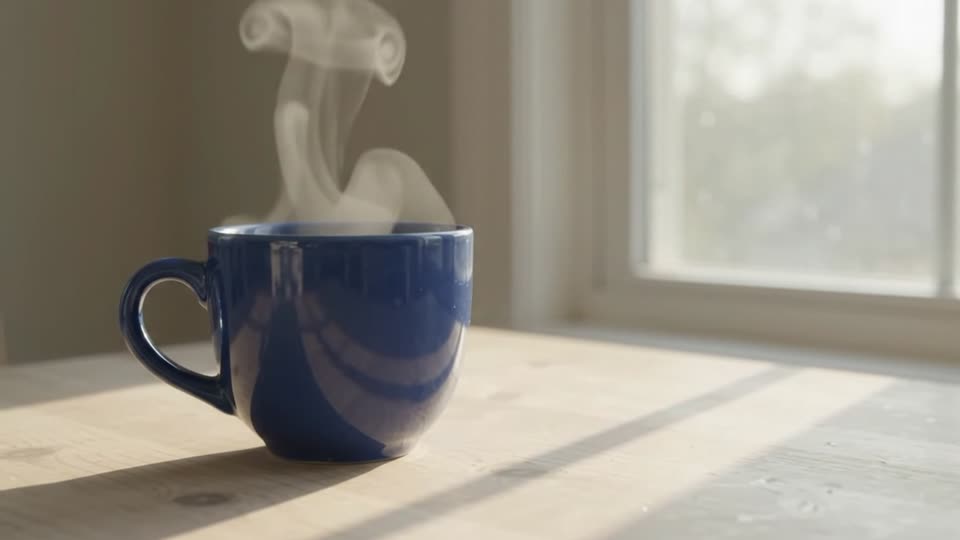
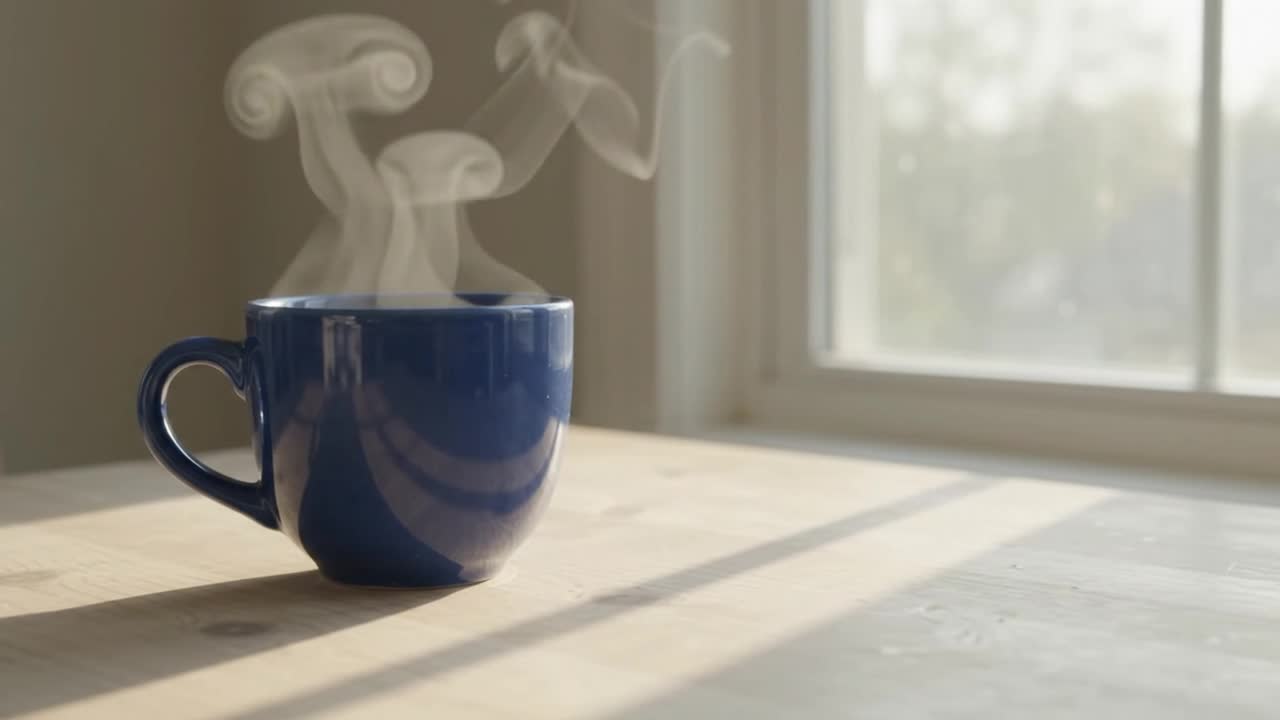
A plain cobalt blue ceramic cup rests on a pale wooden table beside a window. Soft morning light, gentle steam rising, one slow camera push-in. No people, no lettering, no logos. Keep the cup shape and tabletop stable. Natural room ambience.
Vídeo generado
Prueba de AIVG · 5s · 2026-09-06
Prompt y ajustes
720p · 5s · 16:9
Entrada: Solo texto.
Qué revisar: Revisa el asa, el borde, el vapor y el movimiento de cámara.
Animar una foto de producto
Prueba el movimiento y el recorte de horizontal a vertical.
Imagen inicial
Prompt (inglés)
Animate this product photograph with a very slow camera push-in and subtle natural changes in the window light. Preserve the product shape, color, placement and background. Keep the shot calm and continuous. Do not add people, lettering or extra objects.
Vídeo generado
Prueba de AIVG · 5s · 2026-09-06
Prompt y ajustes
720p · 5s · 9:16
Entrada: Una foto propia y nítida; este ejemplo parte de una imagen horizontal para un vídeo vertical.
Qué revisar: Compara el primer fotograma, los bordes recortados, la forma y el fondo.
Empezar con un borrador
Prueba la composición en 360p antes de otra generación en alta resolución.
Prompt (inglés)
A small glass vase with three white flowers on a dark wooden desk. Soft side light and gentle movement in the petals. A locked camera, one continuous close-up, quiet room ambience. No text, no people and no additional objects.
Vídeo generado
Prueba de AIVG · 3s · 2026-09-06
Prompt y ajustes
360p · 3s · 16:9
Entrada: 360p y 3 segundos; tras revisar puedes elegir otra resolución.
Qué revisar: La grabación muestra el borrador. La alta resolución es una nueva generación, no una ampliación sin pérdidas.
Cómo usar
Cómo crear con Gemini Omni 1.1 Flash
01
Elige el material
Escribe un prompt, sube una foto o elige editar vídeo y selecciona/sube la fuente.
02
Describe una toma o un cambio claro
Indica qué debe cambiar y qué conservar: sujeto, cámara, fondo y ritmo.
03
Revisa los créditos y compara
Revisa el coste exacto antes de generar. Conserva el original, compara la nueva versión y reutiliza o deshaz los cambios del borrador.
Capacidades
Controles compatibles
Duraciones
3s / 4s / 5s / 6s / 7s / 8s / 9s / 10s
Resoluciones
360p / 720p / 1080p / 4k
Relaciones de aspecto
16:9 / 9:16
Audio generado
Compatible
Cuadro final (image tail)
Disponible en imagen a vídeo
Seed
No disponible
Prompt negativo
No disponible
Última verificación
Sep 6, 2026 · Stale
Ejemplo 360p / 5s: 40 créditos, equivalentes a $0.796 USD según el paquete de 100 créditos por $1.99 USD. Los créditos se compran en paquetes; consulta el precio exacto de tu configuración antes de generar.
Dónde encaja
Genera clips de 3 a 10 segundos a partir de texto o imagen.
Edita un vídeo seleccionado y conserva el original.
Prueba un borrador en 360p y genera otra versión en 720p, 1080p o 4K.
Antes de generar
Fuente subida: un MP4 con H.264, hasta 10 segundos y 50 MB; también puedes elegir un vídeo completado en AIVG.
La edición puede alterar detalles que debían conservarse. Compara el principio, la mitad y el final.
No están disponibles múltiples referencias de vídeo, audio subido, máscaras ni edición por fotograma.
La disponibilidad de la edición de vídeo varía según la región.
Servicio y cuenta
AIVG no ofrece API, créditos ilimitados ni eliminación de marcas de agua; los asuntos de la cuenta oficial corresponden a Google.
El uso comercial sigue los términos de cada modelo; confírmalos antes de publicar.
¿El video exportado tendrá marca de agua?+
La marca de agua y los permisos de exportación dependen del plan y del modelo seleccionado.
¿Qué ocurre con los créditos si falla la generación?+
Cuando una generación llega al estado de fallo, los créditos cobrados se devuelven a tu saldo.
¿Cuándo veré la cotización exacta en créditos?+
Cotización exacta antes de cada ejecución.
¿Puedo subir mi propio vídeo?+
Sí. Elige editar vídeo y sube un MP4 H.264 de hasta 10 segundos y 50 MB. Revisa la fuente y describe la edición. Sustituir o quitar el vídeo conserva tus instrucciones.
¿Referencia y edición son lo mismo?+
No. Una referencia orienta la identidad, apariencia o movimiento de un vídeo nuevo. La edición modifica una fuente concreta intentando conservar partes de ella.
¿Cómo se cobra una edición?+
La cotización usa la duración medida de la fuente, redondeada hacia arriba a segundos enteros, y la resolución de salida. Revisa el importe antes de cada versión.
¿Puedo editar un resultado anterior?+
Sí. Selecciona un resultado completado como fuente y crea otra versión. También puedes volver a una fuente anterior para explorar otra idea.
¿Todo lo demás se conservará perfectamente?+
No está garantizado. Compara los ejemplos originales y editados para detectar cambios no deseados.