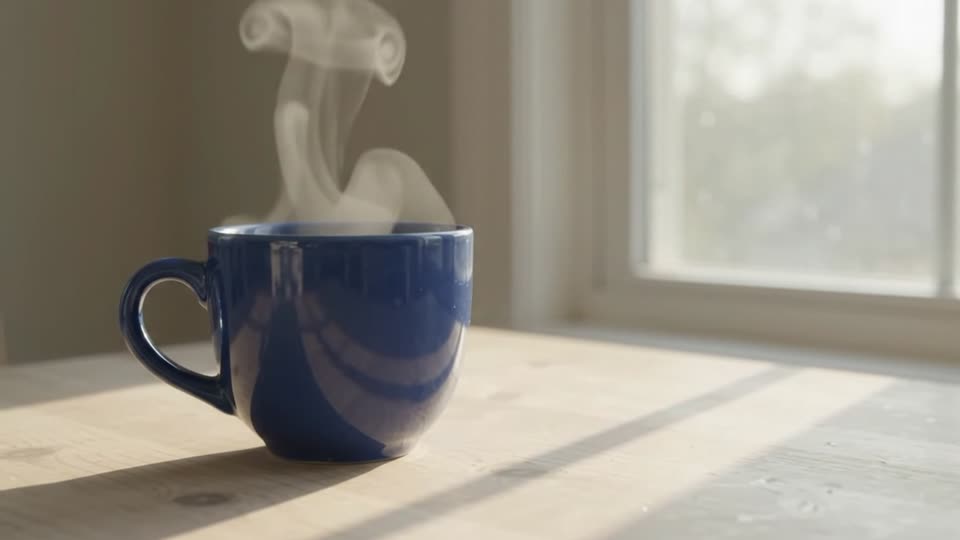
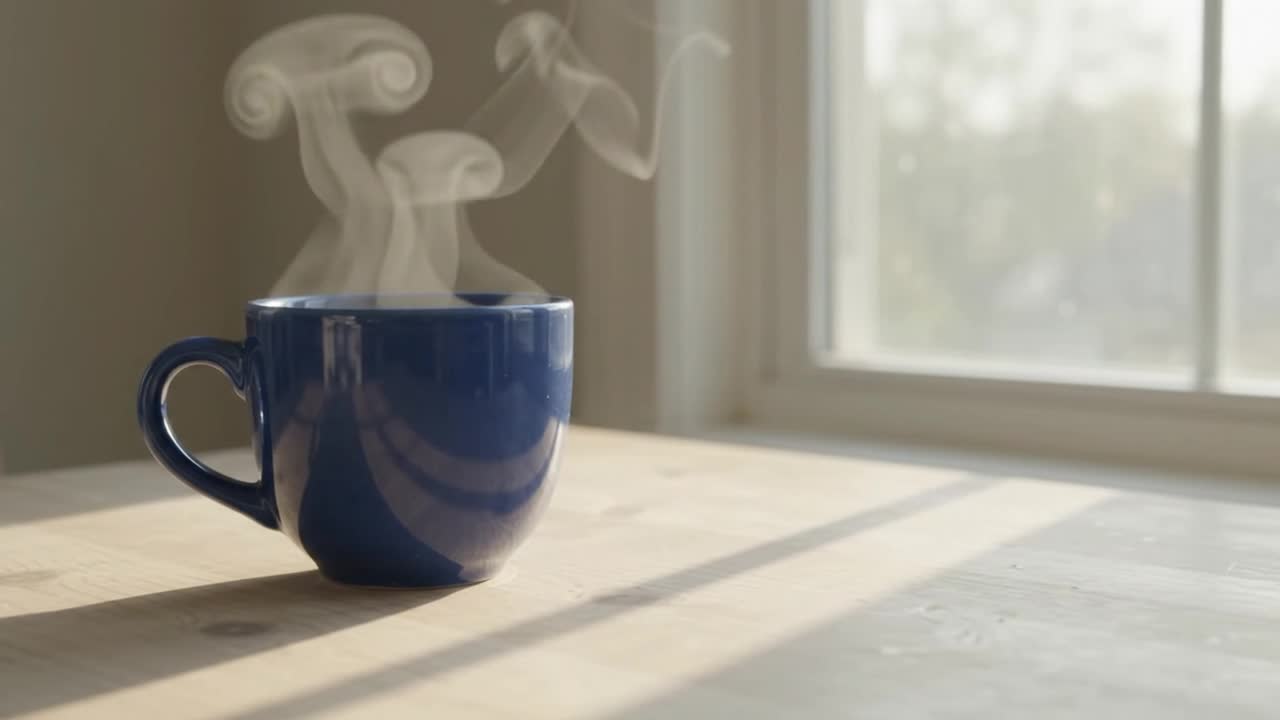
Create videos from text or images with Gemini Omni 1.1 Flash, with generated audio.
Gemini Omni 1.1 Flash · Overview
Generate a first take from text or a photo, then change its color, lighting or visual style with written instructions. Keep the original and compare each new version.
Select the first take in your workspace and ask for one visible change.
Source video
Prompt (English)
Change only the ceramic cup from cobalt blue to warm terracotta orange. Preserve the cup shape, camera movement, table, window light, steam and background. Keep everything else the same.
Edited version
AIVG test recording · 5s · 2026-09-06
Prompt and settings
720p · 5s · 16:9 · Editing is quoted from the measured source duration.
Input: The completed cup video from the first recipe.
What to check: Compare the original and edit at the beginning, middle and end. Look for unwanted changes outside the cup.
Branch from the original take to compare a second creative direction.
Source video
Prompt (English)
Change the window light to soft golden-hour evening light with longer warm shadows. Preserve the cobalt blue cup, table, steam, framing and original camera motion. Do not add objects or text.
Edited version
AIVG test recording · 5s · 2026-09-06
Prompt and settings
720p · 5s · 16:9 · Editing is quoted from the measured source duration.
Input: Select the original blue-cup video again, rather than the color edit.
What to check: Check that the light changes while the cup stays blue and the shot keeps its framing.
Explore a new look while keeping the source shot as the reference.
Source video
Prompt (English)
Restyle this shot as a delicate watercolor animation on textured paper. Keep the cup, steam, tabletop, composition, timing and camera path recognizable. Use soft blue and warm neutral washes. No added lettering or objects.
Edited version
AIVG test recording · 5s · 2026-09-06
Prompt and settings
720p · 5s · 16:9 · Editing is quoted from the measured source duration.
Input: The completed original cup video.
What to check: Judge style separately from preservation: note any altered cup geometry or new objects.
Start with one object and one camera movement so you can judge motion and shape clearly.
Prompt (English)
A plain cobalt blue ceramic cup rests on a pale wooden table beside a window. Soft morning light, gentle steam rising, one slow camera push-in. No people, no lettering, no logos. Keep the cup shape and tabletop stable. Natural room ambience.
Generated video
AIVG test recording · 5s · 2026-09-06
Prompt and settings
720p · 5s · 16:9
Input: Text prompt only.
What to check: Check the handle, rim, steam and camera movement across the whole clip.
Animate a product photograph
Use your own photograph to test motion and cropping from a landscape image to a portrait video.
Starting image
Prompt (English)
Animate this product photograph with a very slow camera push-in and subtle natural changes in the window light. Preserve the product shape, color, placement and background. Keep the shot calm and continuous. Do not add people, lettering or extra objects.
Generated video
AIVG test recording · 5s · 2026-09-06
Prompt and settings
720p · 5s · 9:16
Input: Upload a photograph you own. This recording uses a landscape cup photograph for portrait output.
What to check: Compare the first frame, cropped edges, shape and background. The cup is partly cropped at the beginning of this example.
Plan a draft and a higher-resolution take
Try composition at 360p, then generate a separate higher-resolution take after reviewing it.
Prompt (English)
A small glass vase with three white flowers on a dark wooden desk. Soft side light and gentle movement in the petals. A locked camera, one continuous close-up, quiet room ambience. No text, no people and no additional objects.
Generated video
AIVG test recording · 3s · 2026-09-06
Prompt and settings
360p · 3s · 16:9
Input: Start at 360p and 3 seconds. After review, reuse the inputs and choose 1080p or 4K.
What to check: The higher-resolution take is a new generation, so compare composition and motion as well as detail.
How to
How to create with Gemini Omni 1.1 Flash
01
Choose the material
Write a prompt, upload a starting photograph, or choose Edit video and upload/select a source.
02
Describe one clear change or shot
For editing, state what must change and what must stay: subject, camera path, background and timing.
03
Review the quote and compare results
Check the exact credits before running. Keep the original, compare the new version and reuse or undo your draft changes.
Capabilities
Supported controls
Durations
3s / 4s / 5s / 6s / 7s / 8s / 9s / 10s
Resolutions
360p / 720p / 1080p / 4k
Aspect ratios
16:9 / 9:16
Generated audio
Supported
End frame (image tail)
Supported for image to video
Seed
Not available
Negative prompt
Not available
Last verified
Sep 6, 2026 · Stale
Example 360p / 5s: 40 credits, equivalent to $0.796 USD using the 100-credit / $1.99 USD pack. Credits are purchased in packs; check the exact quote for your settings before generating.
Where it fits
Generate 3–10 second clips from text or an image.
Edit one selected video with a written instruction and keep the original.
Try a 360p draft, then generate a separate take at 720p, 1080p or 4K.
Know before you generate
Uploaded editing sources: one MP4 with H.264 video, up to 10 seconds and 50 MB. You can also select a completed AIVG video.
Edits may change details you asked to preserve. Compare the beginning, middle and end of both versions.
Multiple video references, audio-reference upload, masks and frame-specific edits are not available in this workspace.
Video editing availability varies by region.
Service and account details
AIVG does not provide an API, unlimited credits or watermark removal; official account matters go to Google.
Commercial use follows each model's own terms — confirm them before publishing.
Will the exported video have a watermark?+
Watermark and export permissions depend on your plan and selected model.
What happens to credits when generation fails?+
When a generation job reaches a failed state, the credits charged for it are returned to your balance.
When will I see the exact credit quote?+
Exact quote before every run.
Can I upload my own video to edit?+
Yes. Select Edit video and upload one MP4 with H.264 video, up to 10 seconds and 50 MB. Preview it, then describe the edit. You may replace or remove the source without deleting your instructions.
Is reference-to-video the same as video editing?+
No. A reference guides the identity, look or motion of a new video. Editing starts with a specific source video and a request to change it while preserving selected parts.
How is an edit priced?+
The quote uses the measured source duration, rounded up to a whole second, and the selected output resolution. Review the exact amount before each version.
Can I continue changing a previous result?+
Yes. Select a completed result as a source, write the next instruction and create another version. You can return to an earlier source to explore a different direction.
Does editing preserve everything else perfectly?+
No. Preservation is a quality target, not a guarantee. Use the original and edited examples below to assess unintended changes.