Create videos from text or images with HappyHorse 1.0, with generated audio.
What can you create with HappyHorse 1.0
Direct a short scene with HappyHorse 1.0: describe the lighting, camera angle and action. Start from a photo to set the opening composition, and generate sound alongside the picture.
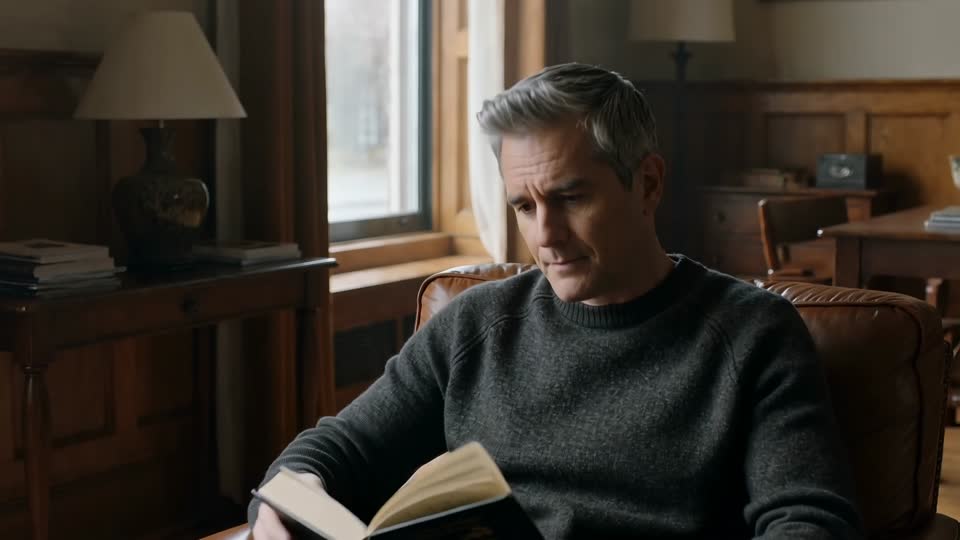
A wide view establishes the room, a closer shot follows the reader, and a final close-up brings attention to the book. Watch the cuts, changing camera distance and soft window light in this published HappyHorse 1.0 example.
Platform-published demonstration · fal.ai · 1080p
1080p example published by fal.ai. View the original prompt at the source.
Describe the subject, light and camera movement to explore a new shot without an input photograph. Compare the result with the same prompt on another model.
Prompt (English)
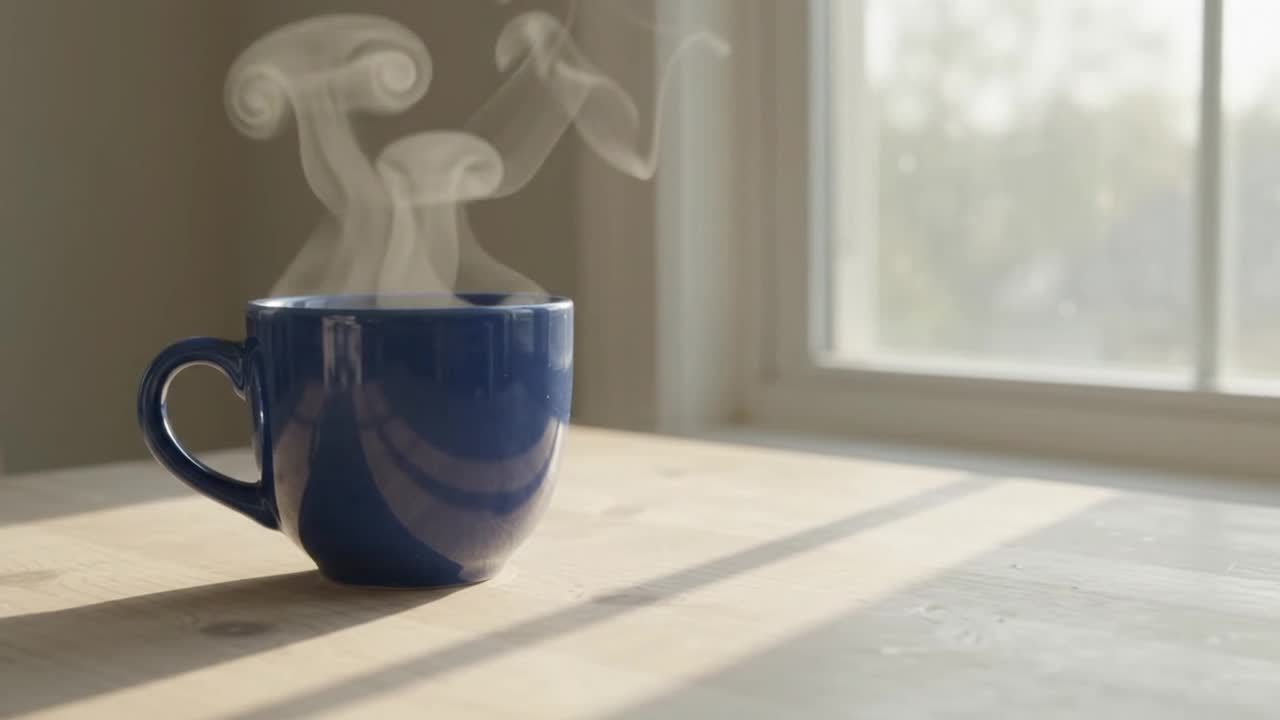
A plain cobalt blue ceramic cup rests on a pale wooden table beside a window. Soft morning light, gentle steam rising, one slow camera push-in. No people, no lettering, no logos. Keep the cup shape and tabletop stable.
Generated video
AIVG test recording · 5.041667s · 2026-09-06 · Current quote: 170 credits
Prompt and settings
720p · 5s · 16:9
Input: Text prompt; generated audio included.
What to check: The camera moves close enough to crop the cup at the end. Review framing across the whole shot.
Bring a starting photograph into motion
Upload a photograph to establish the starting subject and composition. Describe the movement you want, then compare the first frame and the rest of the clip with your original.
Starting image
Prompt (English)
A plain cobalt blue ceramic cup rests on a pale wooden table beside a window. Soft morning light, gentle steam rising, one slow camera push-in. No people, no lettering, no logos. Keep the cup shape and tabletop stable.
Generated video
AIVG test recording · 5.041667s · 2026-09-06 · Current quote: 170 credits
Prompt and settings
720p · 5s · 16:9
Input: A photograph you own or have permission to use; generated audio included.
What to check: Compare the handle, steam, framing and background with the starting image. A starting frame does not guarantee preservation throughout the video.
How to
How to use HappyHorse 1.0
01
Choose text or image
Use text for a new scene, or upload a clear photograph to set the starting image.
02
Describe one shot
Specify the subject, one action and a camera movement. These examples use a blue cup and a slow push-in.
03
Review the quote and create
Check the exact credits, generate, then play the complete result in your creation. Reuse the inputs for another variation.
Example 720p / 5s: 170 credits, equivalent to $3.383 USD using the 100-credit / $1.99 USD pack. Credits are purchased in packs; check the exact quote for your settings before generating.
Where it fits
Describe framing, light and a sequence of actions
Start from a photograph when composition matters
Generate picture and audio together
Know before you generate
Choose duration and resolution in settings; the credit price updates with your choices.
This page creates a new video from text or a photo. To change an existing clip, choose a video-editing model.
Review movement, fine details and sound before using the result.
Service and account details
AIVG does not provide an API, unlimited credits or watermark removal; official account matters go to Alibaba.
Commercial use follows each model's own terms — confirm them before publishing.
Will the exported video have a watermark?+
Watermark and export permissions depend on your plan and selected model.
What happens to credits when generation fails?+
When a generation job reaches a failed state, the credits charged for it are returned to your balance.
When will I see the exact credit quote?+
Exact quote before every run.
What does this page include?+
Create a new video from text or animate a starting photo. Choose the duration, resolution and available sound options in settings.
How much does one video cost?+
The 5-second 720p example uses 170 credits. Other settings have different prices; check the amount before generating.
Can I edit an existing video with this model?+
This configuration creates a new video from text or a photograph. To change a specific existing clip, open AI video editing and choose a supported model such as Gemini Omni.
Where do these examples come from?+
Each example includes its source and settings. Use these to compare the input and result; your own generation may differ.